Have you ever been deep into a Snowbreak Locate session, your squad counting on you, only to have your entire world go dark in a literal flash? Not the game – I mean your room. The screen dies, the fans whirr to silence, and that sinking feeling hits your stomach. Did the server save? Are all those hours of gathering and building gone?
I have. A few years ago, a summer thunderstorm decided my gaming rig’s fate with a single flicker. The power came back in ten seconds, but my locally-hosted Snowbreak Locate server – the one my friends and I had built a small digital empire on – was corrupted. The world file was a mess. We lost days of progress. That was the day I stopped thinking of a UPS as an “office thing” and started seeing it as the most critical piece of gaming hardware nobody talks about.
Let’s change that. This guide isn’t a dry tech manual. It’s a conversation about protecting what you’ve built. We’ll walk through, in plain English, what a UPS really does, why your Snowbreak Locate server is a prime target for power problems, and exactly how to pick and set one up so you can game through a storm (or at least shut down gracefully).
What Exactly is a UPS, and Why is it a Server’s Best Friend?
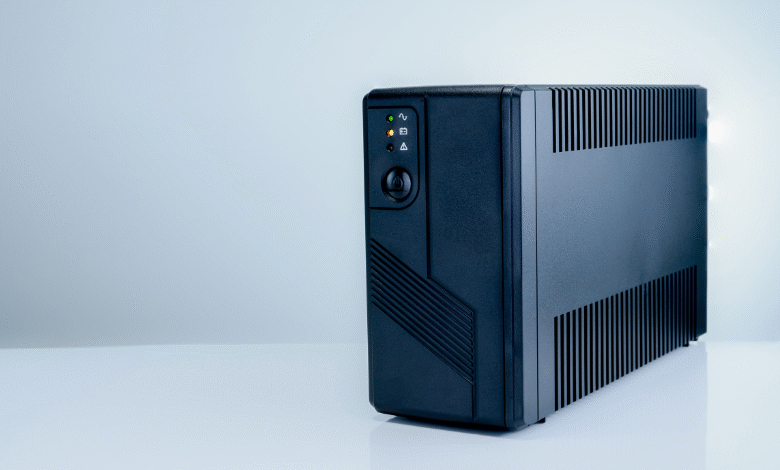
Think of an Uninterruptible Power Supply (UPS) as a power parachute and a bulletproof vest combined for your electronics. It’s a box with a big battery inside that sits between your wall outlet and your precious gear. It has three core jobs:
-
Surge Protector: It acts as a first line of defense, absorbing violent spikes in voltage (like from lightning strikes) that can fry a power supply or motherboard.
-
Power Conditioner: It smooths out “dirty” power – the minor sags and swells (called brownouts) that happen when your air conditioner kicks on or the grid is strained. This dirty power stresses components over time.
-
Instant Backup Battery: This is the main event. When the main power completely fails, the UPS instantly (we’re talking milliseconds) switches to battery power. Your connected devices don’t even blink. This gives you crucial time.
That last point is the key. Time for what? Time to save your game, communicate with your team, and most importantly, execute a controlled, automatic shutdown of your Snowbreak Locate server. A sudden loss of power while the server is writing data is a guaranteed recipe for corruption. A UPS prevents that.
Read Also: Lisa Wiehoff: Finding the Quiet Majesty of the Midwest Through Large Format Film
Why Your Snowbreak Locate Server is a Power Outage Magnet
You might think, “It’s just a game on my computer.” But a local server is fundamentally different from playing a single-player title.
-
Constant Read/Write Activity: A live server is always writing data – player positions, inventory changes, world updates. Interrupting this process is like pulling the hard drive out of a desktop PC while it’s on. The data being written can be lost or, worse, can corrupt the entire file it belongs to.
-
24/7 Uptime: Even when you’re not playing, the server might be running for friends or for background tasks. That means it’s always exposed to power issues, day and night.
-
Cascading Failure: Your server isn’t just your PC. It’s your modem and router too. If your internet equipment loses power, your server is an isolated island, kicking everyone out. A proper UPS setup protects your entire network chain.
Navigating the Specs: How to Choose the Right UPS
Shopping for a UPS can feel like reading another language. Let’s translate the important bits.
1. VA and Watts: The Capacity Rating.
-
VA (Volt-Amps): This is the “apparent power” rating of the UPS. It’s the headline number you see, like 1500VA.
-
Watts: This is the real power your equipment actually uses. This is the number that matters most.
-
The Rule: Your equipment’s total Wattage should be less than 80% of the UPS’s Watt rating for efficiency and runtime. For a typical gaming PC hosting a Snowbreak Locate server, plus a monitor and networking gear, I recommend starting at 1000VA / 600W minimum. A 1500VA / 900W unit is the sweet spot for most setups, offering longer runtime.
2. Sine Wave Output: The Non-Negotiable for Modern PCs.
This is critical. The electricity from your wall is a smooth, rolling wave (a sine wave). Cheap UPSs output a blocky, “simulated sine wave” when on battery.
-
The Problem: Modern PC power supplies (especially efficient “active PFC” units) can be picky eaters. They might malfunction, shut down, or even be damaged by a poor-quality simulated sine wave.
-
The Solution: Always get a Pure Sine Wave or Sine Wave UPS for your gaming rig and server. It’s cleaner, safer, and compatible with everything. Brands like CyberPower (with their “PFC” series) and APC (their “Sine Wave” lines) make great options.
3. Runtime: How Many Minutes Do You Need?
A 1500VA UPS won’t let you game for hours. Its purpose is to provide enough time for a safe shutdown, typically 5-10 minutes under full load. If you want more time to wait out brief outages, you need to size up or connect less equipment to the battery outlets. The product specs usually have a runtime chart.
4. Connectivity: The Brains for Safe Shutdown.
A UPS with a USB or network connection is a must. This lets it talk to your PC. You install software (like PowerPanel or APC’s PowerChute) that can:
-
Monitor power events and battery level.
-
Automatically save files and shut down your PC (and the Snowbreak Locate server service) when the battery is low.
-
This is the feature that turns the UPS from a simple battery into an automated guardian. You can be asleep during a nighttime outage, and your server will shut itself down safely.
Setting It Up: From Box to Protected Fortress
-
Charge First: Plug the UPS into the wall and let it charge for at least 6-8 hours before connecting any gear.
-
Connect Strategically: Plug your PC tower and monitor into the battery-backed outlets on the UPS. Plug your modem and router into other battery-backed outlets. Your printer, speakers, and desk lamp? Those go into the surge-only outlets (if it has them) or a separate power strip.
-
Install the Software: Install the manufacturer’s software on your PC. Run the setup wizard. It will detect your UPS.
-
Configure Shutdown Settings: This is the most important step. In the software, set the parameters for automatic shutdown. I set mine to start the graceful shutdown sequence when the battery has 3 minutes of runtime left. This gives the process plenty of time.
-
Test It! Once configured, do a test. Save your game, then unplug the UPS from the wall. Your PC and monitor should stay on. Watch the software. It should detect the power loss, start a countdown, and then initiate a full Windows shutdown. Once it’s safe, plug the UPS back in. Congratulations, your server is now armored.
A Couple of Personal Recommendations
After testing several models for my own homelab and gaming setup, two consistently stand out for the Snowbreak Locate use case:
-
For Most People (The Sweet Spot): CyberPower CP1500PFCLCD. It’s a 1500VA / 1000W Pure Sine Wave unit. It has enough power for a robust gaming PC and network gear, offers solid software, and is often priced very competitively. The LCD screen is handy for checking status.
-
For the Serious Host / Smaller Form Factor: APC Back-UPS Pro 1000. APC is the industry standard for a reason. Their PowerChute software is polished. This 1000VA / 600W Sine Wave model is reliable, compact, and perfect if your PC is more efficient or you have a dedicated, lower-power server box.
Keeping Your Guardian Healthy
A UPS isn’t “set and forget.” The battery inside is a consumable, like a tire.
-
Test Quarterly: Use the software’s “Self-Test” button every few months.
-
Replace the Battery Every 2-3 Years. You’ll know it’s time when the runtime drops sharply or it beeps frequently during short outages. Most models let you swap the battery easily without replacing the whole unit – a huge cost saver.
-
Keep it Cool: Don’t stuff it in a cabinet. Give it ventilation.
Conclusion
Investing in a proper sine wave UPS for your Snowbreak Locate server isn’t about buying more gear; it’s about buying peace of mind. It’s the difference between a minor inconvenience during a storm and a catastrophic loss of your digital world. The cost of a good UPS is a fraction of the cost of your gaming PC and is tiny compared to the value of the time and memories you’ve invested in your server. After my early disaster, I’ve had my UPS click on dozens of times over the years. Each time, it’s just a quiet click, a notification on my screen, and the knowledge that my server – and my fun – is safe. That’s a win no power company can take away.
Frequently Asked Questions (FAQ)
Q: Can’t I just use a surge protector?
A: A surge protector is better than nothing, but it’s only a shield. It does nothing during a full outage. A UPS is a shield and a backup system that gives you the time to save and shut down properly, preventing data corruption.
Q: Will a UPS let me keep gaming during a blackout?
A: Not for long. The runtime on most consumer UPS units is measured in minutes, not hours. Its primary goal is to provide enough time for a safe, automated shutdown, not extended gameplay.
Q: How do I know how many Watts my PC uses?
A: The easiest way is to use an online “PSU Calculator” from brands like Cooler Master or Seasonic. Input your components (CPU, GPU, etc.), and it will give you a good estimate. For a gaming PC hosting a server, assuming 600-800W is a safe starting point for UPS sizing.
Q: Do I need to put everything on the UPS?
A: No! Only put critical devices on the battery-backed outlets: your PC, monitor, and internet equipment (modem/router). Non-essential items like speakers, desk lamps, or phone chargers should go on a separate strip or the UPS’s surge-only outlets.
Q: My UPS is beeping. What’s wrong?
A: It’s communicating! A constant beep usually means it’s on battery power (check for an outage). An intermittent beep could mean the battery is old and needs replacement, or the unit is overloaded. Always check the manual or the unit’s display for specific alarm codes.